
Two editions
iReliabee on the web and on desktop
iReliabee comes in two editions with one account and one set of credits. The desktop app is the full iReliabee, made to sit beside your calls. In a browser you can write and take notes with other people, with nothing to install.
Only in the desktop app
- Coaching in Zoom, Teams and other meeting apps. Hears the call in any meeting app on your computer and helps you as it happens. Why it needs the app: a browser can only hear a tab you share with it, or your whole computer's sound on some systems.
- Hidden from screen share. Keeps the iReliabee window out of what other people see when you share your screen. Why it needs the app: a web page can't keep itself out of a screen share.
- One-key screenshots in a call. Press C to capture the screen you chose and ask about what's on it, without leaving the call. Why it needs the app: a browser asks you to pick what to share each time.
- Under-camera strip, overlay and teleprompter. Shrinks iReliabee to a strip under your webcam or a small panel above other windows, so you can read while keeping eye contact. Why it needs the app: a web page can't draw over other apps.
- Meeting reminder pop-ups. A reminder appears over whatever you're doing just before a meeting starts. Why it needs the app: a web page can only remind you while it's open.
- Ready in the tray, from the moment you sign in. Starts with your computer if you like, and waits in the system tray until a call begins. Why it needs the app: a browser tab is gone when it's closed.
- Use your own AI assistant. Hands text work to Claude Code, Codex or Gemini on your own plan instead of using credits. Why it needs the app: a web page can't start a program on your computer.
- Posts you have to sign in to see. The app's own browser reads a post on X, Instagram or Facebook that you're signed in to, so you can make notes from it. Why it needs the app: a web page can't read another site you're signed in to. In a browser, paste the text or add a screenshot.
- Your data on your computer, and offline. Sessions, transcripts, notes and writing are kept on your computer, and you can keep working without a connection. Why it needs the app: a browser has nowhere safe to keep them, so in a browser they are kept on our server.
In both
- Write. Sections, citations inked as you type, and the reference list in your style.
- Notebook. Pages, notes, a meeting's decisions and actions, ticked as they're done.
- Editing together. The same project open in the app and in a browser, with everyone's changes and names as they type.
- Comments. On a section or on the words you select, for the people you invite.
- Your own projects and notebooks. Start and keep Write projects and notebooks in a browser, and open them in the app too: both stay in step.
- The coach's review. What is strong in a section or the whole draft and what to work on, priced before it runs and paid for with your credits.
- Study tools in notebooks. Explain the words you select, a mind map, a paragraph put another way, a question to check your understanding, the glossary, explaining a chapter back, studying a chapter and explaining it twice, paid for with your credits.
- Find evidence and the claim check. Papers whose abstracts support a sentence, and each claim in a section marked against the sources it cites, priced before they run.
- Finding papers. Search OpenAlex and Semantic Scholar from Write's Sources, and add what you find as a source, with no credits used.
- Spaced review. The questions you answer come back when they are due, across all your notebooks.
- One account. The same sign-in and the same credits in both.
Coming to the browser
- Practice and Wordcraft. Mock interviews, talk drills, presentations and Wordcraft, with your microphone.
- Meetings in a browser tab. The live companion for Meet, Teams or Zoom on the web, hearing the tab you share.
Get the desktop app
Updates itself from inside the app. Windows may ask you to confirm the first time.
Compare it with the Microsoft StoreThere isn't a Mac version yet. On a Mac you can use iReliabee in a browser, as described above.
Two ways to install on Windows
Both install the same app. They differ in how you get updates and in what Windows shows the first time.
Direct installer (.exe)
RecommendedWhat you get
- Each new version on the day it's released.
- Updates itself: the app tells you when a new version is ready and installs it when you choose.
- No Microsoft account or Store app needed.
- Installs for your Windows user only, so it doesn't need administrator rights.
What to expect
- The first time you run it, Windows SmartScreen may show “Windows protected your PC”. Choose More info, then Run anyway.
- Windows shows this for new apps from independent publishers until the installer is signed with a code-signing certificate it recognises. iReliabee's isn't signed that way yet.
- Updates installed from inside the app aren't browser downloads, so Windows doesn't usually ask again.
To check the file you downloaded is the one we published, compare its SHA-256 checksum with this one. In PowerShell, in the folder you saved it to:
Get-FileHash .\iReliabee_0.5.1_x64-setup.exe
The Hash it shows should be:
B486C2E05B15D7573A0DF3F78F2E6F5A49309257F06E1EE9B440E6521616BDE9
Microsoft Store
What you get
- Checked by Microsoft before each version is listed.
- No SmartScreen prompt.
- Installs in one click from the Store app.
What to expect
- Updates come through the Store, not from inside the app.
- Each new version reaches the Store after Microsoft's review, usually a few days after the direct download, and arrives when the Store updates your apps.
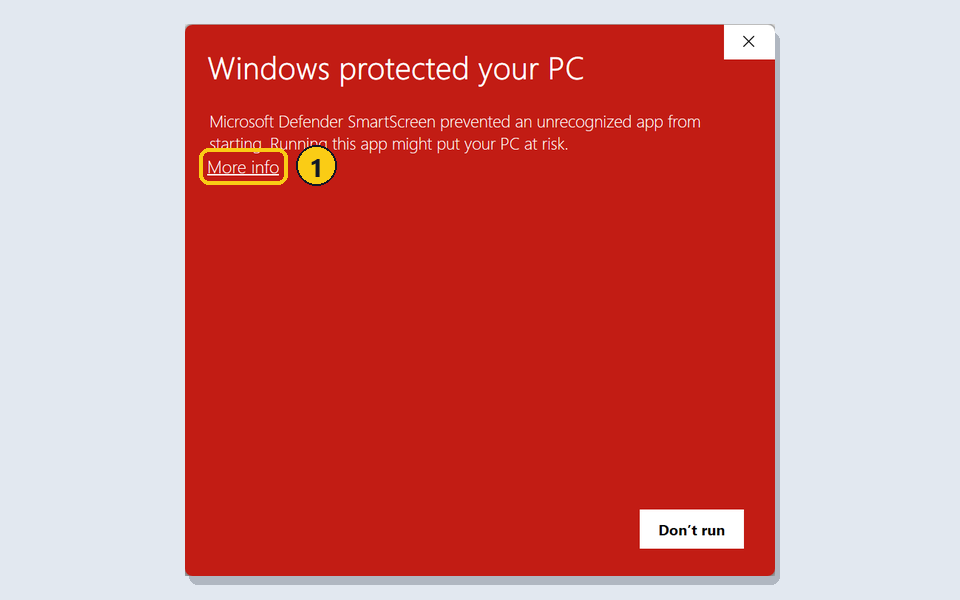
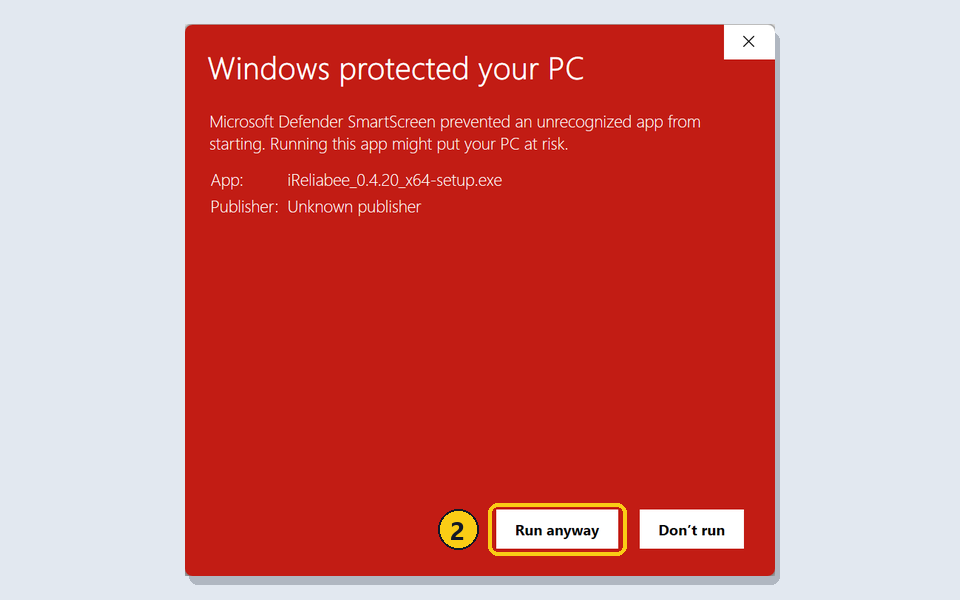
What Windows shows the first time, and the two clicks to continue. The file name you see shows the version you downloaded, so it may be newer than the one in these pictures.
Or with winget: winget install Ewooral.iReliabee